

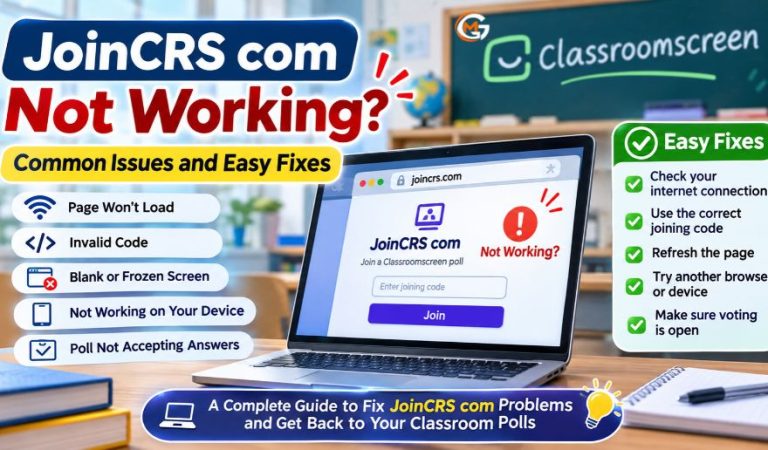
JoinCRS com can be frustrating when your teacher has started a poll, but the joining page will not open. You may see a blank screen, a rejected code, or an unresponsive poll. Simple checks often help.
The joining page is connected to Classroomscreen, a tool teachers use to run polls and manage classroom activities. Students join a live poll through a browser, usually with a code or QR code. They do not need to install a separate app just to vote.
This guide covers device checks, teacher settings, and ways to keep lessons moving. The advice works for students and teachers in classrooms, online lessons, and mixed learning settings.
What Is JoinCRS com, and How Does It Work?
JoinCRS com is a short route to the student joining page for Classroomscreen. It is not a school portal for homework, grades, or saved lessons. A teacher builds a question with the Classroomscreen Poll widget, enables remote voting, and displays joining instructions. Students enter the shown code or scan its QR code to reach that poll. The teacher can then collect responses and show results to the class. Polls may use multiple-choice answers, smiley faces, or true-or-false choices. Even with working internet, the activity must be available.
How to Join a Classroomscreen Poll Correctly
Enter the Current Joining Code
First, ask your teacher to display the active poll and its joining instructions. Open the JoinCRS com address in a regular browser, not a search result that only describes the service. Enter the code exactly as shown, then follow the on-screen prompt and select your response. If the page opens a Classroomscreen-branded joining screen, that may be normal. Do not reuse a code from an old lesson.
Try the QR Code Instead
If typing the code fails, scan the QR code on the teacher’s screen using your device camera. This can avoid typing mistakes and may open the question directly. Check that the code is clearly visible, with enough light and no glare.
JoinCRS com Not Working? Try These First
Start with the quickest checks before changing browser settings. Make sure your device is connected to the internet by opening another ordinary page. Reload the joining page once and carefully check the address. Then ask a classmate whether the same poll works for them. If only your device fails, try a different supported browser or restart your device. If several students cannot join, tell the teacher. A shared problem may involve the poll settings, school network, or a temporary service issue, not every student’s device.
Why Does a JoinCRS com Code Say Invalid?
A rejected code does not always mean you typed it badly. It may refer to an earlier activity, or the teacher may have changed screens or stopped remote voting. Compare every character with the current code displayed by the teacher; pay attention to similar-looking digits. Avoid guessing codes or taking them from public posts. Ask whether the intended poll is running with remote voting enabled. If a QR code also fails for the whole class, the teacher should inspect the poll rather than asking students to keep trying random browsers.
Mast Read: Milyom Explained: Origin, Interpretations, and Important Facts
Fix a Blank Page, Endless Loading, or Browser Error
Refresh Without Old Cached Files
A page that stays white, freezes, or loads halfway may have a browser problem. Refresh once. On many Windows and Linux browsers, Ctrl + F5 forces a fuller reload; on Chrome or Firefox for Mac, Command + Shift + R can do the same. Close extra tabs if your device is struggling. If the issue continues, try a private browsing window or another updated browser to see whether saved site data or an extension is involved.
Check Cookies and Browser Extensions
You can clear site data for the Classroomscreen joining service if a normal reload does not help. This may sign you out of other Classroomscreen pages, so teachers should save their work first. Disable a suspicious extension only if school rules allow it. Avoid changing security controls on a managed school device without IT guidance.
Problems on Phones, Tablets, and Chromebooks
The joining page is designed for browser access, so a phone, tablet, laptop, or Chromebook can often be used. A device may still fail because its browser is outdated, its connection is weak, or a school policy blocks the page. If a QR scan opens a built-in preview that never finishes loading, choose to open the address in your normal browser. Rotate the screen or adjust text size if the answer buttons are hard to see. On a shared school Chromebook, report repeated problems to your teacher instead of changing administrator settings or installing unfamiliar software.
Poll Opens but Will Not Accept Your Answer
Check Whether Voting Is Open
Reaching the question means you passed the joining step, but you may still be unable to vote. Classroomscreen lets teachers open or close voting, so check whether the poll is accepting answers. If you already submitted one, the system may not allow another vote until the teacher resets responses. Do not refresh rapidly or tap the answer button many times; that can make it harder to tell whether your first vote worked. Tell the teacher what you see and ask whether your response appeared in the results.
Teacher Fixes for Missing Codes and Closed Voting
Teachers should check the Poll widget before asking students to troubleshoot further. Remote voting needs to be enabled in its settings and, according to Classroomscreen’s account guidance, requires a Basic or Pro teacher account. Confirm that the current question is displayed, the joining banner is visible, and voting is open. If a class moved to a new question or screen, share the current instructions again. The Poll widget also allows votes to be reset so students can respond again, but resetting changes collected results. Use it only when a new round is intended or a correction is necessary.
School Wi-Fi Restrictions and Temporary Outages
If a whole group sees the same connection error, test whether other classroom websites work and ask school IT if the joining service is allowed on that network. Schools sometimes limit sites, scripts, or access on managed devices. A teacher can also test the joining page on another approved network to narrow down the cause. This alone does not prove a wider outage. If the issue persists across devices and networks, report the time, browser, and error message to Classroomscreen support.
Is JoinCRS com Safe, and What Are Its Limits?
The joining page is associated with Classroomscreen, but students should still use the exact address or QR code supplied by their teacher. Joining a poll normally does not require a student profile or payment. That does not mean the site processes no data: like many web services, Classroomscreen’s privacy information describes technical visit data, including browser details and IP addresses. Avoid entering personal information into unexpected forms. The service is convenient for quick class feedback but cannot replace a full learning platform, and its usefulness depends on a teacher keeping a supported poll active.
Simple Alternatives If Joining Still Fails
A teacher can use the Poll widget’s on-screen voting buttons instead of remote voting, where appropriate. For a quick class check, students might answer by raising hands, using paper response cards, or following a school-approved classroom tool. These are backups, not technical fixes. Choose an option that fits the lesson, student access needs, and school privacy rules. After the activity, the teacher can investigate the technical problem without holding up the rest of the class.
Final Thoughts
When JoinCRS com is not working, check the connection, browser, current joining code, and active poll before assuming the site has failed. Students can address device problems, but teachers control poll settings. If multiple devices are affected, involve school IT or Classroomscreen support. A simple backup activity can keep students involved while the problem is resolved.
(FAQs)
1. Why Is JoinCRS com Not Working on My Device?
The likely causes include weak internet, an outdated browser, blocked site access, or a poll that is not ready. Test another page, reload once, and ask whether classmates can join. If they can, focus on your device first.
2. How Do I Fix an Invalid JoinCRS com Code?
Check the code against the teacher’s current screen, including every digit. An old code may no longer lead to the active poll. If it still fails, ask the teacher to check remote voting and share the QR code.
3. Is JoinCRS com the Same as Classroomscreen?
Not exactly. Classroomscreen is the broader teacher tool for running classroom screens and polls. JoinCRS com is a way for students to reach a live poll. The teacher creates the activity, while students use the joining page to participate.
4. Do Students Need an Account to Use JoinCRS com?
Students normally join a remote poll using its code or QR code, without making a separate account. Teachers need a Classroomscreen account with remote voting access. Do not enter a password on an unexpected joining page.
5. Why Is the Poll Not Accepting My Answer?
The teacher may have closed voting, or you may have already voted. Ask whether the activity is still open and if your answer was recorded. Only the teacher should decide whether to reset votes and start a new round.
6. Can I Use JoinCRS com on a Phone or Chromebook?
Usually, yes. Open the joining page in an updated browser and use a stable connection. School-managed Chromebooks may have access limits. If a QR scan stalls, try opening the page in your regular browser instead.
7. Is JoinCRS com Safe for Students?
It is linked to Classroomscreen’s classroom polling service. Still, use only teacher-approved instructions and avoid lookalike sites. No separate student account is normally needed, but technical website data may be processed, so follow your school’s privacy guidance.
8. What Should I Do If JoinCRS com Still Does Not Work?
Tell your teacher the exact error, device, and browser you used. If several students have the same issue, the teacher can check poll settings and ask school IT for help. Use an approved backup response method in the meantime.
For More News and Daily Updates Visit: Gigly Magazine
