

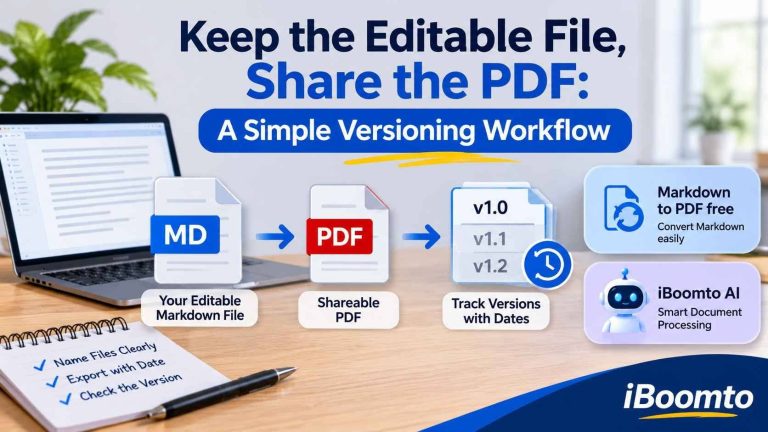
Working on documents is not just about writing good content. It is also about keeping files organized, preserving editable originals, and making sure everyone receives the correct version. Whether you are preparing business reports, technical documentation, project notes, research papers, or website content, a disorganized file system can quickly create unnecessary confusion.
One of the simplest ways to avoid these problems is to maintain an editable source file and create a separate PDF whenever you need to share or publish the finished document. This approach gives you the flexibility to make changes later without losing the consistency of the version already distributed.
Tools such as Markdown editors, PDF converters, and document AI assistants can make this process easier. However, the tools alone are not enough. A reliable workflow also requires sensible file naming, dated exports, and a clear method for tracking revisions.
Here is how to build a straightforward document versioning workflow that saves time and reduces mistakes.
1. Always Keep an Editable Source File
A common mistake is treating the exported PDF as the main document. PDFs are excellent for distribution because they preserve layout and are easy to open on different devices. However, they are not always the most convenient format for ongoing editing.
For example, imagine writing a project proposal and sending it to a client as a PDF. A few days later, the client requests changes to the introduction, pricing information, and project timeline. If the PDF is your only copy, making those changes may require additional conversion or editing work.
Keeping the original source file solves this problem.
Markdown is a particularly practical format for documents that contain headings, paragraphs, lists, tables, links, and code examples. It uses simple text-based formatting, making it easy to edit in different compatible applications.
A sensible folder structure might look like this:
- Project Proposal/
- proposal_master.md
- proposal_draft.md
- exports/
- proposal_2026-11-17.pdf
- proposal_2026-11-20.pdf
The master Markdown file remains your editable working document, while the PDF files represent specific versions that have already been shared.
This separation makes it easier to update content without accidentally changing a document that has already been approved or distributed.
2. Use Consistent File Names to Track Changes
File naming may seem like a minor detail, but it becomes important when several people work on the same project or when documents go through multiple revisions.
Names such as final.pdf, final-new.pdf, and final-latest-updated.pdf do not provide much useful information. After a few revisions, it becomes difficult to identify which file contains the approved information.
Instead, use a predictable naming structure.
A useful format is:
ProjectName_DocumentType_Version_Date
For example:
- WebsiteGuide_Source_v01_2026-11-17.md
- WebsiteGuide_Source_v02_2026-11-18.md
- WebsiteGuide_Approved_v03_2026-11-20.md
- WebsiteGuide_Shared_v03_2026-11-20.pdf
This structure identifies the project, document type, revision number, and date.
You can also use simple labels to describe the document’s status:
- Draft: Still being written or reviewed.
- Review: Shared for comments or suggestions.
- Approved: Accepted as the final content.
- Published: Distributed or uploaded publicly.
The important thing is consistency. Choose a naming system and use it across all your projects rather than creating a different approach for every document.
3. Create Dated PDF Exports Instead of Overwriting Files
Exporting a document to PDF is a convenient way to prepare it for sharing. However, repeatedly saving over the same PDF can create problems.
Suppose you send a report to a colleague on Monday and make several changes on Wednesday. If you replace Monday’s PDF with the newer version, you may lose a clear record of what the colleague originally received.
A better approach is to create a separate export whenever an important revision is ready.
For instance:
- MonthlyReport_v01_2026-11-10.pdf
- MonthlyReport_v02_2026-11-14.pdf
- MonthlyReport_Final_2026-11-17.pdf
Each file represents a specific point in the document’s history.
This method is especially useful for business proposals, contracts, presentations, technical manuals, and research documents where people may need to refer to previously shared information.
You do not necessarily need to save every minor change. Instead, create a new export when a document is ready for review, approval, or distribution.
Also, remember that dated exports are records of previous versions, not automatic version control. You still need to manage the files yourself and decide which version is currently approved.
4. Convert Markdown Documents into PDFs for Sharing
Once your editable Markdown document is ready, the next step is preparing a clean PDF for distribution.
For people who do not want to install additional software or learn complicated formatting settings, an online converter can make this process much simpler.
The Markdown to PDF free tool from iBoomto provides a browser-based way to turn Markdown files into readable PDF documents.
It is useful for converting articles, project notes, technical documentation, research material, and other text-based files.
The converter supports common Markdown elements, including:
- Headings and subheadings
- Bold and italic formatting
- Ordered and unordered lists
- Tables and blockquotes
- Links and images
- Code blocks and mathematical notation
Another useful feature is batch conversion. Users can upload up to five Markdown files in one batch, with an individual file size limit of 50 MB.
The service is free to use without requiring an account or installing a desktop application. This makes it convenient when you simply need to prepare a few documents for sharing.
How to Convert Markdown to PDF Online
The conversion process is straightforward, even if you have never used a Markdown converter before.
Step 1: Prepare Your Markdown File
Open your document in a Markdown-compatible editor and review the content. Check headings, lists, links, tables, and images to make sure everything is organized correctly.
Save the document with the .md extension.
Step 2: Open the Online Converter
Visit the iBoomto Markdown to PDF page:
https://www.iboomto.com/markdown-to-pdf
You can access the tool directly through your browser without downloading additional software.
Step 3: Upload Your Markdown Document
Select your Markdown file from your computer or drag and drop it into the upload area.
If you have multiple documents ready for distribution, you can upload up to five Markdown files together.
Step 4: Start the Conversion
Click the conversion option to process your uploaded documents. The tool reads the Markdown formatting and generates PDF versions.
Your headings, paragraphs, lists, tables, and other supported elements are arranged into a readable document layout.
Step 5: Download and Review the PDF
Once the conversion is complete, download the generated PDF files.
Before sharing them, open each PDF and check the page layout, headings, tables, images, and links. A quick review helps catch formatting issues that might otherwise go unnoticed.
Finally, move the PDF into your project’s exports folder and give it a name that includes the appropriate version number and date.
5. Keep OCR and Multiple Document Processing in Mind
Markdown conversion is useful when the original content is already available in an editable text-based format. However, not every document starts that way.
Some businesses still work with scanned reports, photographed pages, printed forms, and older PDF files. These documents may contain text that cannot be easily copied or edited.
This is where Optical Character Recognition (OCR) becomes useful.
OCR technology identifies text inside scanned pages and images, making the information more accessible for further processing. It can help when converting older documents into reusable digital content or extracting information from paper-based records.
It is important to distinguish these tasks from standard Markdown-to-PDF conversion. OCR is a separate document-processing capability rather than a feature of the Markdown export itself.
For larger document workflows, iBoomto also provides AI-powered document processing and PDF tools. Its PDF-to-Markdown functionality supports OCR for scanned PDFs, while its Windows application provides additional options for working with different document formats and multiple files.
This gives users a way to move between document formats depending on whether they need to edit, extract, analyze, or distribute information.
6. Use an AI Document Assistant for More Complex Workflows
As document collections grow, manually reviewing every file becomes time-consuming. You might need to summarize several reports, compare information across documents, extract important figures, or prepare a new document using existing material.
An AI document assistant can help with these tasks.
iBoomto AI is a Windows-based document AI application designed to help users work with different types of files through an AI-powered interface.
It supports common formats such as PDF, Word, Excel, PowerPoint, CSV, and Markdown, along with images, plain text, web URLs, and folders.
Some practical ways to use a document AI assistant include:
- Summarizing lengthy reports before sharing them.
- Extracting important information from PDF documents.
- Asking questions about uploaded files.
- Comparing information across multiple documents.
- Organizing research notes and reference material.
- Preparing summaries and reports from existing content.
One of the interesting aspects of iBoomto AI is its support for both online and local AI models.
Online models can be useful when you want access to cloud-based AI capabilities without relying entirely on your computer’s hardware. Local models, meanwhile, run directly on a compatible Windows device and can support document processing without sending the document content to an external AI service during local inference.
The local approach is particularly useful for people who prefer greater control over their document data.
Local models also avoid token-based usage charges, although actual processing capacity depends on the selected model, computer hardware, and context limits. These practical limitations are different from subscription or token restrictions.
How to Download and Start Using iBoomto AI
Getting started with the desktop application is relatively simple.
Step 1: Visit the Official Website
Open the iBoomto AI page:
https://www.iboomto.com/ai-agent
Review the available information about its document-processing features and supported capabilities.
Step 2: Download the Windows Application
Use the official download option to obtain the application. Follow the installation instructions to set it up on your Windows computer.
Step 3: Choose an AI Model
After installation, explore the available online and local model options.
If you prefer local processing, select a model that is compatible with your computer’s hardware. Smaller models may be more suitable for computers with limited memory or processing power.
Step 4: Import Your Documents
Open the appropriate document-processing or chat section and add the files you want to work with.
You can use supported formats such as PDF, Word, Excel, PowerPoint, Markdown, and plain text.
Step 5: Describe the Task
Enter a clear instruction explaining what you want the AI assistant to do.
For example, you might ask it to summarize a report, extract important dates, compare two documents, or organize research information into a structured outline.
Review the generated results and compare important details against the original files before using them in an official document.
7. Avoid Editing the Wrong Version
Even with a good folder structure and clear file names, mistakes can happen when several document versions are open at the same time.
A few simple habits can prevent most of these problems.
Keep one clearly identified master file. Choose a single editable source as the current working document. Avoid making unrelated changes to older copies.
Separate drafts from exports. Store Markdown source files and finished PDFs in different folders. This makes it easier to identify which file should be edited and which one is intended for sharing.
Check the version before editing. Before opening a document for revisions, confirm its filename, date, and approval status.
Create backups before major changes. If you are making significant revisions, save a separate copy of the original source file.
Record important updates. A simple change log can explain what changed between versions.
For example:
| Version | Date | Changes |
| v01 | November 17 | Initial draft |
| v02 | November 18 | Updated sections and examples |
| v03 | November 20 | Final review and approval |
These small habits can make document management much more reliable, particularly when working with clients, colleagues, or multiple projects.
Final Thoughts
A good document workflow does not need to be complicated. Keeping an editable source file, using consistent names, creating dated PDF exports, and checking versions before editing can prevent many common mistakes.
Markdown provides a flexible way to maintain structured content, while PDF exports make it easier to distribute finished documents without requiring recipients to use the same editing software.
For straightforward publishing tasks, iBoomto’s online Markdown converter offers a convenient way to prepare PDFs without installation. When the work involves larger document collections, OCR, summaries, or AI-assisted analysis, iBoomto AI provides a broader Windows-based document workspace with online and local model options.
The most important principle is to keep your original files separate from the documents you distribute. Once that habit becomes part of your routine, updating, reviewing, and sharing documents becomes considerably easier.
