

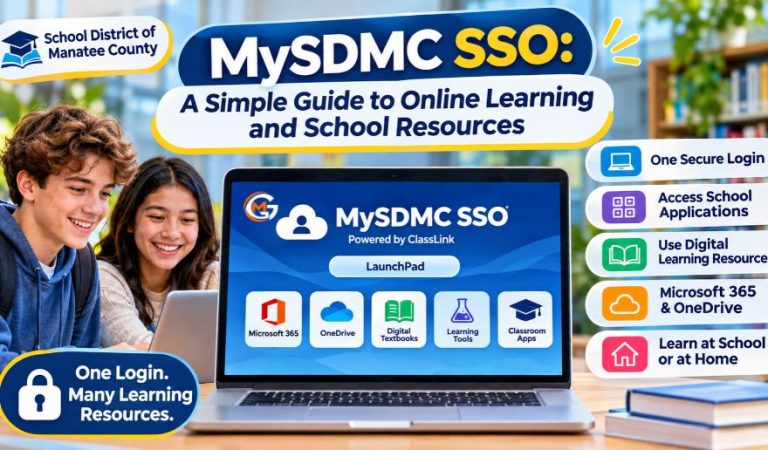
MySDMC SSO is an online platform that helps students and teachers access important school resources in one place. It provides a simple way to open educational applications, digital textbooks, and learning tools without visiting several websites.
The School District of Manatee County in Florida uses this system to support digital learning. Through ClassLink LaunchPad, authorized users can access their assigned applications at school or from home using district-issued login credentials.
Understanding how MySDMC SSO works can make daily school activities easier. This guide explains its main features, login process, available resources, account security, and common technical problems. It also explains how the platform differs from the FOCUS Parent Portal.
Quick Info
| Detail | Information |
|---|---|
| Platform Name | MySDMC SSO |
| Full Form | Single Sign-On |
| School District | School District of Manatee County |
| Location | Manatee County, Florida, USA |
| Platform Provider | ClassLink |
| Main Dashboard | ClassLink LaunchPad |
| Primary Users | Students and school staff |
| Account Type | District-issued account |
| Main Purpose | Access to school applications |
| Learning Resources | Digital textbooks and educational tools |
| Productivity Tools | Microsoft 365 |
| Cloud Storage | OneDrive, when available |
| Access Options | School and home devices |
| Account Support | School or district technology staff |
What Is MySDMC SSO?
MySDMC SSO is a single sign-on system used by the School District of Manatee County. It allows authorized students and employees to access approved online applications through a central dashboard. Rather than opening several websites separately, users can find their assigned tools in one place. The portal supports digital lessons, classroom activities, and schoolwork. However, it is not a public learning website. Users need an active district account to access protected resources.
How Does MySDMC SSO Work?
The system uses ClassLink LaunchPad to connect users with their assigned school applications. After signing in, students see a dashboard containing icons for available programs. Clicking an icon opens the selected resource, sometimes in another browser tab. Some connected applications may request additional verification. The school district controls which tools appear based on the user’s account, grade, school, and access permissions. As a result, two students may see different dashboards even when they use the same login system.
How to Log In to MySDMC SSO
Step-by-Step Login Instructions
Students should begin at the official School District of Manatee County website and select the MySDMC SSO option. This opens the district’s ClassLink sign-in page. When prompted, select Please Click Here To Sign In and enter the username and password provided by the school. After successful authentication, the LaunchPad dashboard displays the applications available to the account. Always check that the login page belongs to the district’s approved service before entering personal information.
First-Time Login and School Devices
New students should obtain their login details from their teacher or school office. On some district-managed computers, the portal may recognize an existing school sign-in automatically. Personal devices usually require users to enter their credentials. Students should follow any first-time setup instructions provided by their school. On shared computers, it is important to sign out of the portal and connected applications after finishing schoolwork.
Mast Read: Miuzo Guide 2026: Meaning, Digital Uses, and Key Insights
Main Features of the MySDMC SSO Dashboard
Personalized Dashboard and App Library
The ClassLink dashboard includes a My Apps area containing assigned educational applications. Students can search for programs instead of looking through every icon. District guidance also describes an App Library where users can add certain available resources. Depending on their permissions, users may organize icons, create folders, or change dashboard settings. Some applications cannot be removed because they are managed by the district.
Search, Notifications, and Accessibility
ClassLink also provides features designed to make daily access easier. The dashboard may include notifications, profile settings, and accessibility tools. These options can help students locate applications and adjust how information appears on their screens. Available settings may change as the platform is updated. Students who cannot find a particular feature should follow their school’s current technology instructions.
Online Learning Resources Available Through MySDMC SSO
Digital Textbooks and Classroom Programs
One important benefit of the platform is access to school-approved learning materials. District guidance identifies online textbooks, reading programs, and math and science resources among its educational tools. These programs can support classroom lessons, independent practice, and homework. However, not every student receives the same applications. Available resources depend on grade level, assigned courses, and school decisions.
Microsoft 365 and OneDrive
Microsoft 365 is another useful resource identified in district instructions. Students with access can use applications such as Word, Excel, and PowerPoint for writing, organizing information, and preparing presentations. OneDrive provides cloud storage for school documents, allowing users to continue work from another device. Students should save files in their school-approved storage location and check that important changes have been saved before closing an application.
How to Use MySDMC SSO at Home or School
Students can access assigned resources outside the classroom when their accounts and applications allow it. On a home computer, they need an internet connection, a compatible browser, and valid district credentials. School-managed Chromebooks may use a different sign-in process. ClassLink also offers mobile access, although some educational programs work better on laptops or desktops. A few applications may require approved browser settings or extensions. Families should follow school instructions rather than installing unfamiliar software.
MySDMC SSO vs. the FOCUS Parent Portal
MySDMC SSO and FOCUS serve different purposes. The ClassLink portal mainly provides access to educational and staff applications. FOCUS is the district’s student information system, helping authorized parents and students review grades, attendance, assignments, and school information. Parents generally use their own FOCUS Parent Portal accounts instead of their child’s school login. The MySDMC Focus mobile app also offers access to student information for eligible users. Families should choose FOCUS when checking academic progress and ClassLink when opening assigned learning resources.
How to Reset a MySDMC SSO Password
Students who forget their passwords should check the recovery option on the official sign-in page. Depending on account settings, recovery may require a username or previously configured security information. Earlier district guidance described password recovery questions, although current steps may differ. If recovery is unavailable, students should contact their teacher or school technology staff. Never share passwords or recovery answers with unknown websites, and avoid repeatedly guessing credentials because this may lock the account.
Common MySDMC SSO Login Problems and Fixes
Incorrect Username or Password
An incorrect password is a common reason for failed access. Students should check spelling, capitalization, and saved login details. They should also confirm that they are using their district account rather than a personal Google or Microsoft account. If the problem continues, the school’s support team can verify account access and explain the correct recovery process.
Missing Applications or Dashboard Errors
Sometimes the dashboard opens, but a required application is missing. Students should search My Apps and check the App Library. If the program remains unavailable, a teacher can confirm whether it has been assigned. Access may change when students move between classes or schools. Users should not assume that every application shown in another student’s account must appear in their own.
Browser and Loading Problems
Blank pages, repeated login screens, and applications that fail to open may involve browser settings or temporary service problems. Refreshing the page, checking the internet connection, or trying another supported browser can help. Clearing outdated browser data may also resolve some issues. If only one application fails, the problem could be with that service rather than ClassLink. Avoid disabling security settings without school approval.
Benefits and Limitations of MySDMC SSO
A major advantage of MySDMC SSO is convenience. It gives students a familiar starting point for school resources and helps teachers direct classes toward approved applications. Students can continue certain learning activities at home without searching for every program separately. Still, the platform has limitations. An active account, reliable internet connection, and suitable device are necessary for many activities. Some applications require additional permissions or separate settings, and the portal cannot replace direct teacher support.
Other Ways to Access School Information
Not every school-related task requires ClassLink. The district website provides information about school calendars, enrollment, transportation, and official announcements. FOCUS is more suitable for reviewing student records and academic progress. Teachers may also direct students to specific classroom applications or learning materials. When an account is locked or a required resource is missing, contacting the school is often the best solution. Students should describe the problem clearly without sharing their password.
Final Thoughts
MySDMC SSO provides a practical starting point for accessing school-approved digital learning tools. Its ClassLink dashboard helps students and staff find resources more easily. By using official login methods, protecting account information, and following school instructions, users can make better use of the platform and resolve common problems.
(FAQs)
What Is MySDMC SSO Used For?
MySDMC SSO provides access to school-approved online applications for eligible Manatee County students and staff. Depending on their accounts, users may open digital textbooks, reading programs, curriculum tools, and Microsoft 365.
Where Can I Find the Official MySDMC SSO Login Page?
Visit the official School District of Manatee County website and select MySDMC SSO. This takes users to the district’s ClassLink entry, where they can follow the sign-in instructions using their school-issued credentials.
Can Students Access MySDMC SSO From Home?
Yes. Students can access the portal from home using a compatible device, internet connection, and valid credentials. Some connected applications may have additional requirements or work differently outside the school network.
What Should I Do if I Forget My MySDMC SSO Password?
Use the password recovery option on the official sign-in page if available. Follow the instructions shown for your account. If recovery fails, contact your teacher, school office, or district technology support.
Why Are Some Applications Missing From MySDMC SSO?
Applications depend on the student’s school, grade, courses, and account permissions. Check My Apps and the App Library first. If a required program is still missing, ask your teacher to confirm access.
Can Parents Use MySDMC SSO to Check Student Grades?
Parents should generally use their FOCUS Parent Portal account to review grades, attendance, and assignments. The MySDMC Focus mobile app also provides access to selected student information for authorized users.
Is MySDMC SSO Available on Mobile Phones and Tablets?
ClassLink supports mobile access, but individual school applications may have different requirements. Students should check whether their assigned programs work properly on mobile devices or require a computer.
Who Should I Contact if MySDMC SSO Is Not Working?
Start with your teacher or school office. They can help with account details, missing applications, and login problems. For technical issues, school staff can direct you to the appropriate district support team.
For More News and Daily Updates Visit: Gigly Magazine
